
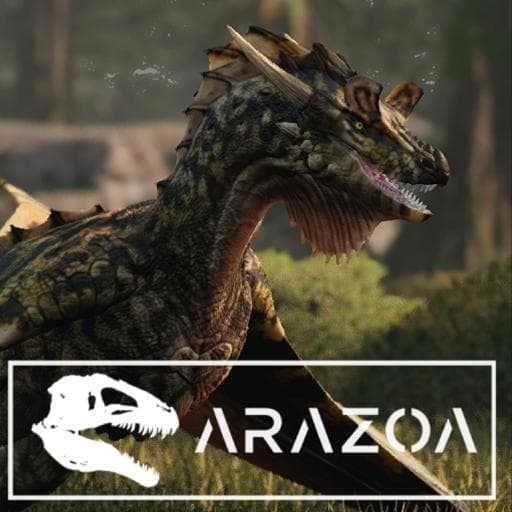
Arazoa Dracoviper
by Rospaw(790-825-412)
Description
Soar through Sky and Sea, Arazoa presents the Dracoviper! These slithery reptiles roam the skies and waters alike! While formidable alone they also prefer to work in numbers to bring down prey larger than themselves with their venomous maw!
Special thanks to
Fledged feathers, Elys, Novacaine and Janey for help with skin work
Fledged feathers and Elys for ability icons
Inklyon for adult friendly call
How to install on a Path of Titans community server
Three steps. Stop the server first - mod changes only apply on startup.
- 1
Find the Mod ID
In Path of Titans, open the Mods page, select the mod, and copy the Mod ID (it looks like
UGC_M_...).For this mod:
UGC_M_W610844EMD_SK(use the Copy button on the right). - 2
Edit your server files
- Log in to your server panel and STOP the server.
- Navigate to the config directory, usually:
/PathOfTitans/Saved/Config/LinuxServer - Open
GameUserSettings.iniand find or create the header:
[PathOfTitans.Mods]
EnabledMods=UGC_M_W610844EMD_SK
#Arazoa Dracoviper
Add a new
EnabledMods=ModIDline for each mod you want enabled. The#line is an optional comment - useful for keeping the file readable when you have many mods.Save the file and restart your server. The mod downloads on startup.
- 3
Setting up a custom map (if applicable)
If the mod is a custom map, you also need to set the map name in
Game.ini:- Get the map file name from the mod author or the mod files (look for a
.umap). - Open
Game.iniand add under the[/Script/PathOfTitans.IGameSession]header:
[/Script/PathOfTitans.IGameSession]
ServerMap=MapFileName
Save the file and start your server.
- Get the map file name from the mod author or the mod files (look for a
Patch history(5 entries)
Latest Updated to latest game version.
Added a new skin ''Piebald'' by STEEB
Updated to latest game version.
Updated for latest game version.
Updated to latest game version.